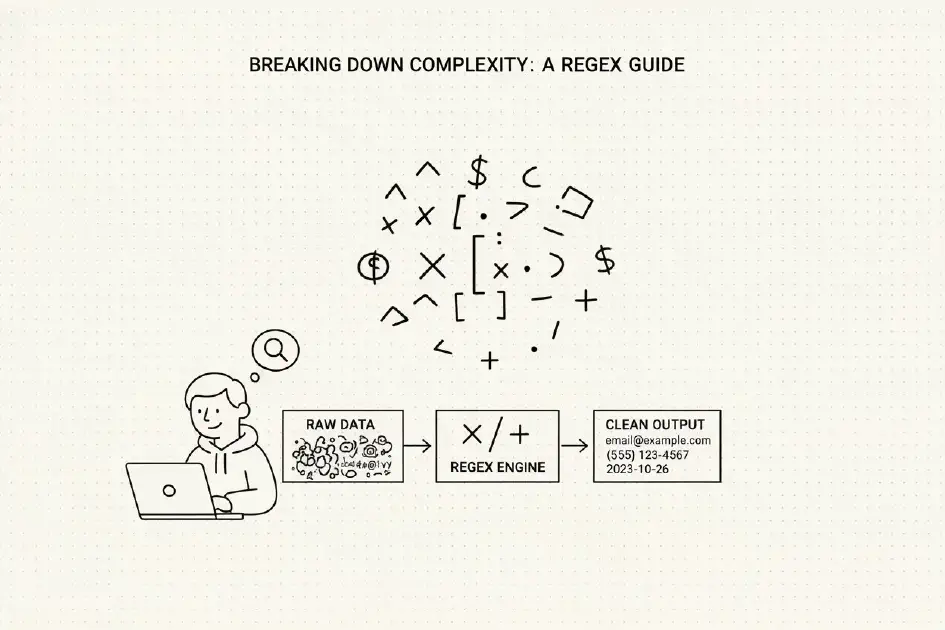
Regular Expression Quick Start Guide

Application scenarios: string search, replacement, validation, and filtering Regular expression language is a mini-language built into programming languages.
Demonstration examples will use JS and Go for illustration. Different languages may have slight differences in regex implementation.
How to make matching more precise? Formulate stricter pattern strings to constrain matching results, ensuring we don’t match unwanted results.
Same Matching Purpose but Different Implementations
Multiple Matching
In JavaScript, use the g flag to match multiple occurrences
In Go, use the FindAll method to match multiple occurrences
Case Sensitivity
In JavaScript, use the i flag to ignore case sensitivity
In Go, add (?i) before the pattern string
Matching Any Character
. matches any single character. To match the literal . character, escape it as \.
Matching a Set of Characters
Use metacharacters [ and ] to define character sets
If only letters are present inside, it means matching any single character from the set, for example [ab] matches either letter ‘a’ or letter ‘b’
This approach can also achieve partial case-insensitive matching, such as [Aa]
Besides enumerating characters one by one, regex provides the - hyphen to simplify range expressions, such as [0-9] [A-Z], etc. The hyphen only has special meaning within []. Multiple range expressions can be concatenated together, such as [A-Za-z0-9]
Using ^ allows negation of character ranges, for example [^0-9] matches any non-digit character
Characters like + and . don’t need escaping when used within ranges
A single character can also be written as a character set, which improves readability when followed by plus or asterisk quantifiers
Metacharacters
Include . [ ] \ + * ? { } ( ) |
To match these characters, add \ for escaping
There are also whitespace metacharacters that match whitespace characters: [\b] \f \n \r t \v
Matching Specific Character Classes
These metacharacters representing character classes can simplify range expressions and thus simplify the entire pattern string
\d is equivalent to [0-9]
\D is equivalent to [^0-9] - generally uppercase letters indicate negation
\w represents any alphanumeric character (case-insensitive) or underscore
\W follows the same logic
Matching Whitespace Characters
\s matches any whitespace character, equivalent to [\f\n\r\t\v]
\S follows the same logic
Matching Multiple Characters
Simply append a + after the character set to match at least one character according to the same rule
If using *, it accommodates zero-character situations, indicating matching 0 or more characters
Matching 0 or 1 Character
Appending ? matches 0 or 1 occurrence of this character to indicate optional matching, for example https? matches both ‘http’ and ‘https’
Limiting Repetition Count
Therefore, introduce { and } metacharacters to limit matching counts
Definite repetition value: {3} means the previous character repeats 3 times for one match
Example: #[[:xdigit]]{6} for matching color values
Repetition within a range: {min,max}
The minimum value can be 0, ? is equivalent to {0,1}
At least k repetitions: {k,}
Greedy and Lazy Metacharacters
By default, + * {n,} are greedy metacharacters that attempt to match as many characters as possible. In target strings with nested sub-patterns, greedy mode becomes inappropriate - instead of getting multiple target strings, you only get one.
Lazy metacharacters try to match as few characters as possible. Enable lazy mode by adding ? after greedy metacharacters.
For example, matching hyperlink tags: <a href=".*?"><\/a>
Position Matching
Used to determine where matching operations occur, limiting matching positions
Boundary Anchors
Some special metacharacters can specify where matching operations happen
Word boundary \b matches the beginning or end of a word, essentially between \w and \W
For example, \bbuild\b won’t match ‘building’
To match a complete word, add \b before and after. If only matching words starting or ending with a certain string, just add \b at the corresponding position.
Similarly, \B matches non-word boundaries
String boundaries ^ matches the start of a string outside character sets, while $ matches the end of a string
Example: matching XML document opening tag ^\s*<\?xml .*?\?>, \s* indicates allowing 0 or more whitespace characters at the beginning
Multiline Matching Mode
Adding (?m) at the very beginning enables multiline matching mode. ^ not only matches the normal string start but also matches positions after line breaks.
Need to understand whether specific implementations support this mode.
Subexpressions
Divide an expression into multiple subexpressions enclosed by (), making these subexpressions usable as independent elements (characters). Even phrases can be treated as a single character.
Example: Simple IP address matching (\d{1,3}\.){3}\d{1,3}
First match three consecutive xxx. then match the final xxx
For improved readability, each subexpression can use parentheses, but different implementations may cause performance degradation in matching.
String set matching can use the (string1|string2|string3) approach, where | means OR.
Nested Subexpressions
For strictly defined IP addresses, multiple nested expressions are needed for stricter matching.
Considering digit count and leading digit requirements, it’s not difficult to write such nested expressions:
^(((\d{1,2})|(1\d{2})|(2[0-4]\d)|(25[0-5]))\.)(((\d{1,2})|(1\d{2})|(2[0-4]\d)|(25[0-5]))\.){2}((\d{1,2})|(1\d{2})|(2[0-4]\d)|(25[0-5]))$
Backreferences
This allows pattern strings to reference previous matching results, achieving a degree of consistency in matching.
Through the \N approach, we can directly reference the Nth subexpression in the pattern string, where N starts from 1, creating certain associations in our matching. Subexpressions must be enclosed in parentheses. If N is 0, it represents the entire expression.
Example: [ ]+(\w+)[ ]+\1 is equivalent to [ ]+(\w+)[ ]+(\w+) with the constraint that the preceding and following (\w+) must be consistent.
It’s worth noting that currently Go’s built-in regex engine doesn’t support this feature, while JS supports this usage.
Using Backreferences for Replacement
Two pattern strings - a search pattern and a replacement pattern - can accomplish more complex replacement functions.
In JS, using $N in the replacement pattern can reference content matched by the Nth subexpression, concatenating into our expected new string.
This feature is often used for string reformatting.
Use metacharacters for case conversion of new strings.
Use \U or \L as start and \E as end, everything in between will be converted to uppercase or lowercase.
Use \u and \l to convert only the next character (or subexpression) to upper or lower case.
Lookahead and Lookbehind
To extract the part of results we care about from matching pattern strings, we need lookahead and lookbehind matching. Common implementations support lookahead, JS doesn’t support lookbehind, while most other languages support lookbehind.
Any subexpression can be converted to a lookahead expression by adding the ?= prefix, indicating only the result before this expression.
Similarly, ?<= indicates only the result after this expression (lookbehind).
Example: Extract only numbers after amounts (?<=\$)[0-9.]+
Embedded Conditions
Not all implementations support conditional processing.
Backreference Conditions
Only allow using this expression when a previous subexpression search succeeds.
Syntax: (?(N)subexpression)
Indicates that when the Nth expression search succeeds, execute the expression within this bracket.
Combined usage: ((?(N)expression1)|expression2)
Can achieve semantic effects similar to:
if N:
expression1
else:
expression2
Lookahead/Lookbehind Conditions
Simply change the backreference number to a lookahead or lookbehind expression.
Can express conditional semantics where either both appear or neither appears (optional expressions can also achieve this purpose).
Example: (?(?=-)-\d{4}) looks ahead for -, if successful, matches four more digits.
Views